Ecowitt straight to WindRose.
Your gateway posts its readings directly to WindRose. No account anywhere, no API keys, no rate limit, and readings arrive at whatever interval you set on the device.
What you need
- An Ecowitt gateway or console with the Customized upload option.
- The Ecowitt app, or WS View Plus, on the same network as the device.
Step by step
In WindRose open Stations, then Add station, and choose Ecowitt (direct upload).
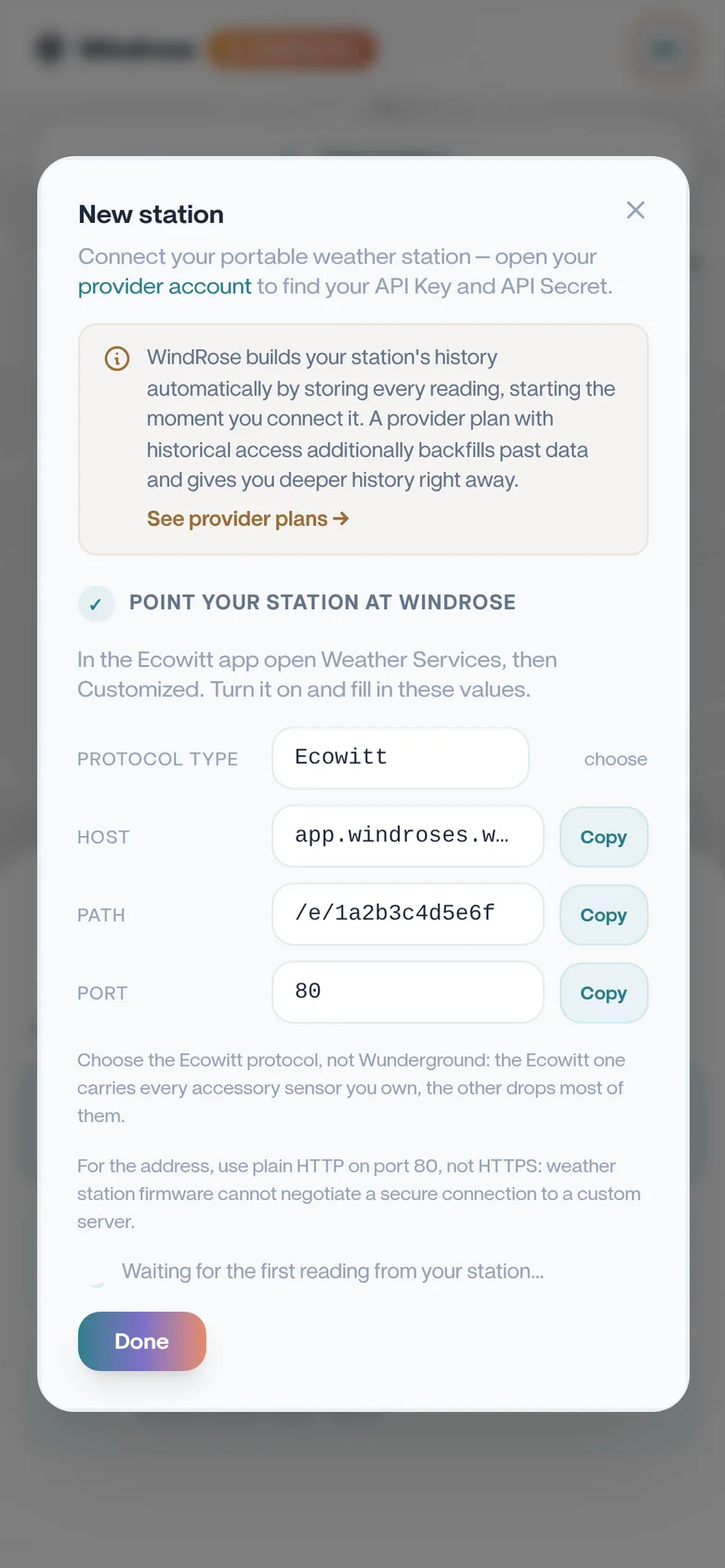
Name the station and save it. WindRose hands you a Host, a Path and a Port.
In the Ecowitt app open your device, then Weather Services, then Customized.
Weather ServicesEcowittWundergroundCustomizedSimplified illustration of the Ecowitt app screen. Labels can differ slightly between versions. Turn Customized on and set the protocol to Ecowitt.
CustomizedCustomizedProtocolEcowittSimplified illustration of the Ecowitt app screen. Labels can differ slightly between versions. Copy the Host, Path and Port from WindRose into the matching fields. Set the upload interval to 60 seconds.
CustomizedProtocolEcowittHostapp.windroses.worldPath/e/1a2b3c4d5e6fPort80Upload interval60SaveSimplified illustration of the Ecowitt app screen. Labels can differ slightly between versions. Save. WindRose shows the station as live as soon as the first reading arrives, usually within a minute.
Worth knowing
Choose the Ecowitt protocol, not Wunderground. The Ecowitt one carries every accessory sensor you own; the other drops most of them.
Use the port WindRose gives you and plain HTTP. Weather station firmware cannot open a secure connection to a custom server, so an https address would simply never deliver.
Keep the address exactly as shown. The firmware silently truncates anything much longer, and then nothing arrives with no error to tell you why.
Try it on your own station.
Free for one station, no card needed. Upgrade only if you want more.